How to Set a Bollywood Ringtone on Android and iPhone
Setting a downloaded MP3 as your default ringtone is straightforward on Android and a few extra steps on iPhone. This guide walks through both platforms in detail, plus advanced options like contact-specific ringtones, alarms and notification tones.
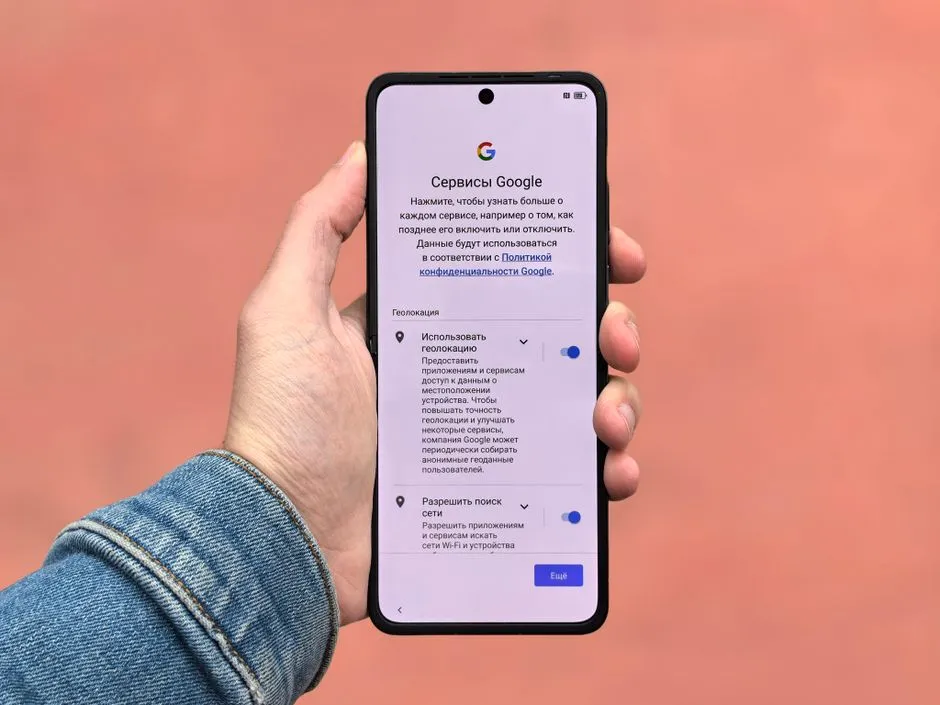
Setting a ringtone on Android
Every modern Android phone — Samsung, OnePlus, Xiaomi, Realme, Vivo, Oppo, Motorola, Pixel, Nothing — supports MP3 ringtones natively. The exact menu names vary slightly by manufacturer, but the underlying flow is the same.
Step 1: Download the ringtone
On any ringtone page, click the Download MP3 button. The file will save to your phone's Downloads folder by default.
Step 2: Move the file to the Ringtones folder (recommended)
Open your file manager (Files by Google, Samsung My Files, Mi File Manager, etc.) and navigate to Internal Storage → Download. Long-press the MP3 you downloaded and choose Move. Select Internal Storage → Ringtones as the destination. If the Ringtones folder doesn't exist, create it first using the file manager's New folder option.
This step is optional — Android will let you select any MP3 as a ringtone — but moving it to the Ringtones folder makes it appear in the standard ringtone picker on every brand of phone.
Step 3: Set the ringtone
Open Settings → Sound & vibration → Ringtone. The exact path varies:
- Samsung: Settings → Sounds and vibration → Ringtone.
- Pixel / stock Android: Settings → Sound & vibration → Phone ringtone.
- OnePlus: Settings → Sound & vibration → Ringtone.
- Xiaomi / MIUI: Settings → Sound & vibration → Ringtone (may need to tap Local).
Scroll the list, find the song by its filename or title, tap to preview, then tap Apply or the back arrow.
Step 4 (optional): Set per-contact ringtones
To assign the ringtone to a specific contact only, open the Contacts app, tap the person, tap Edit, and look for a Ringtone field. Select the file from there. The custom ringtone will play only when that contact calls.
Setting a ringtone on iPhone
iPhone is more restrictive than Android — Apple requires ringtones to be in the .m4r format and under 30 seconds. Here's the cleanest way to convert and install a Ringtone Den MP3.
Method A: GarageBand on iPhone (no computer needed)
- Download the MP3 from Ringtone Den to your iPhone (it'll save to the Files app).
- Open GarageBand (free from the App Store if you don't have it).
- Create a new audio recorder project. In the tracks view, tap the loop icon, switch to the Files tab, and import the downloaded MP3.
- Drag it onto the timeline. Trim it to under 30 seconds using the yellow handles.
- Tap the down-arrow icon → My Songs to save.
- Long-press the saved project, tap Share → Ringtone, name it, and tap Export.
- Choose Use sound as → Standard Ringtone, or assign it to a contact.
Method B: Mac or PC with iTunes / Finder
- On a computer, download the MP3 from Ringtone Den.
- Use a free online MP3-to-M4R converter (e.g. cloudconvert.com) or open the file in iTunes, set the start/stop time to under 30 seconds, then create an AAC version and rename the resulting
.m4ato.m4r. - Connect your iPhone via cable. On macOS Catalina or later, open Finder and select your iPhone. On Windows, open iTunes.
- Drag the .m4r file onto the iPhone in the sidebar. It will sync to the Tones library.
- On the iPhone, open Settings → Sounds & Haptics → Ringtone and select your new tone at the top of the list.
Setting an alarm sound
Both Android and iPhone let you choose a custom MP3 as an alarm sound through the Clock app. On Android, open the Clock app, tap your alarm, tap the bell icon, and select your downloaded ringtone. On iPhone, you'll need to first save the file as a ringtone using one of the methods above, then it'll appear in the Clock app's alarm sound picker.
Setting a notification or text-tone
For text notifications, the same flow applies on both platforms — Android lets you select any MP3 in Settings → Notifications → Default notification sound; iPhone reuses the .m4r files you've installed via Settings → Sounds & Haptics → Text Tone.
Common problems and fixes
The ringtone won't appear in the picker on Android
Most likely the file is still in the Downloads folder. Move it to Internal Storage/Ringtones and refresh the picker. On some phones you also need to clear the Settings app cache for the new file to appear.
iPhone says the file is too long
iOS rejects ringtones longer than 30 seconds. Re-trim the file in GarageBand using the yellow handles before exporting.
The ringtone plays too quietly
Check your phone's ringtone volume separately from media volume — they're independent on most Android phones. On iPhone, ringer volume is set in Settings → Sounds & Haptics, not on the side buttons (unless you've enabled that toggle).
The downloaded MP3 sounds distorted
Sometimes the cause is the phone's speaker handling bass-heavy ringtones. Try a different ringtone from a different category to confirm whether the issue is the file or the speaker.